|
|
Power Setting
Click "Options..." button in the control panel to eject "Options" box, then activate "General" and click "Power Setting" button, you will enter "Power Setting" box as below:
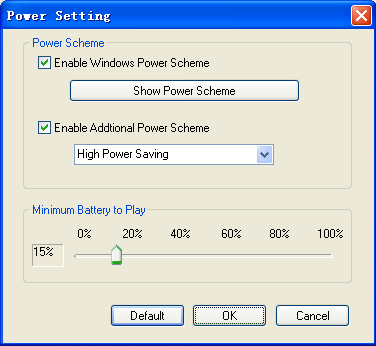
- Power Scheme:
- Enable Windows Power Scheme: Select this option and click "Show Power Scheme", the "Power Options Properties" box of the windows system will pop up for you to perform system power setting.
- Enable Additional Power Scheme: there are three options as below:
- a. High Power Saving: offers the best power savings, but may affect the performance of other applications running at the same time.
- b. Normal Power Saving: offers some power savings without significantly affecting other applications.
- c. Low Power Saving: offers less power savings but allows maximum flexibility to run other applications.
- Minimum Battery to play- Prevents your computer from unexpectedly shutting down while playing movie due to depletion of the battery. Once the battery life reaches the level, a dialog will pop up to prompt you with low power info. Default level is 15%, you also can drag the slide bar to set your desired level.
- Default- click "Default", you will resume the default setting.
- Ok-Submitting the setting, power-saving technology adopted for Laptop PC.
- Cancel-Cancel the resetting, keep the original selecting
|
|
Search Help:
Help with other products
|
